
article
How to Add a Waitlist to Strikingly (HTML Section)
Add a waitlist to Strikingly with a section from App Store & HTML — no coding — plus site-wide code for a popup and a hosted-page fallback.
Strikingly is a website builder aimed at getting a site live fast, with a form and custom code built in. That means you can add a real waitlist without leaving the builder — the GetWaitly widget drops straight into a Strikingly section.
Here is how to add a waitlist to Strikingly, plus the fallback if your plan limits custom code.
The short answer
Add a new section from App Store & HTML, choose HTML, paste the two-line GetWaitly snippet, and hit Save. Then publish — Strikingly only renders custom code on the live site, never in the editor. Your Strikingly waitlist is collecting signups in about five minutes, no code to write.
What you need
- A GetWaitly account with a waitlist created (the free plan covers 100 subscribers).
- A Strikingly site you can edit and publish.
- A Strikingly paid plan for the HTML section — see the plan note below. The hosted-page fallback works on free.
Step 1 — Copy the embed snippet
In your GetWaitly dashboard, create a waitlist and set its headline, accent color, and font. Open Settings → Widget and copy the snippet:
<script src="https://getwaitly.com/widget.js" defer></script>
<div class="gw-widget" data-waitlist-id="YOUR_WAITLIST_ID"></div>
The widget inherits your waitlist's branding, so it matches your Strikingly page.
Step 2 — Add it in the Strikingly editor
- Open your site in the Strikingly editor and click Add New Section in the left panel.
- Choose App Store & HTML. On newer editors it sits under Advanced → Embed & HTML.
- Click the new section to edit it, then pick HTML from the app list. Strikingly has several apps in this section; HTML is the one you want.
- Paste both lines into the code box.
- Click Save.
- Publish the page.
Two things trip people up here. Custom code does not appear in the editor — a blank section there is normal, and you need Preview or the live site to see it. And the section name differs between Strikingly versions, so look for HTML under App Store & HTML or Advanced, not a menu item called "Custom Code."
Plan note: Strikingly's help centre describes the HTML section as a Pro feature, and states that header and footer custom code is for Pro and VIP subscriptions. Some of their docs list the section from the Limited plan up, so availability may shift. If HTML is missing from your section picker, the plan is the reason — use the hosted-page fallback below.
Step 3 — Load the script site-wide (optional)
If you want the form in more than one place, or a popup button anywhere on the page, load the script once in the footer instead of pasting it into every section.
- Go to Settings → Advanced → Custom Code.
- Open the Footer box.
- Paste the script tag only:
<script src="https://getwaitly.com/widget.js" defer></script>
- Save, then republish.
Now each HTML section only needs the container div, and any button or text carrying class="gw-trigger" opens the form in a modal:
<button class="gw-trigger" data-waitlist-id="YOUR_WAITLIST_ID">Join waitlist</button>
Strikingly separates the two boxes deliberately: the header is for CSS and analytics, the footer is for JavaScript embeds. Script tags belong in the footer.
Step 4 — Test it
Open the live page in a private window and submit a test email. Confirm the subscriber appears in your GetWaitly dashboard.
If the form does not show, check that both lines were pasted, that the section has enough width, and — most often — that you are looking at the published page rather than the editor.
Strikingly-specific gotchas
- Custom code is invisible in the editor. That is expected, not a bug. Preview or publish to see it.
- The section is called App Store & HTML, not "Custom Code." Newer editors file it under Advanced → Embed & HTML.
- Header vs footer is not cosmetic. CSS and analytics go in the header; JavaScript embeds go in the footer.
- Strikingly has no backend code access. The widget is entirely front-end, so that limit does not affect it.
- Plan gating moves. The HTML section is documented as Pro, header and footer code as Pro and VIP. If the options are missing, the plan is why.
The fallback: use the hosted page
If your Strikingly plan does not allow custom code, publish GetWaitly's hosted page instead — a complete signup page served by GetWaitly, so there is nothing for Strikingly to block.
- Publish the hosted page at
getwaitly.com/w/your-id. - Link a Strikingly button to that URL, or embed it in an iframe:
<iframe
  src="https://getwaitly.com/w/YOUR_WAITLIST_ID"
  style="width:100%;height:640px;border:0"
  title="Join the waitlist"
></iframe>
What you get
- A styled signup form matching your accent color and font
- Optional name, phone, and custom questions
- Referral links and queue positions (Starter plan and above)
- Broadcast emails with open and click tracking (Starter and above)
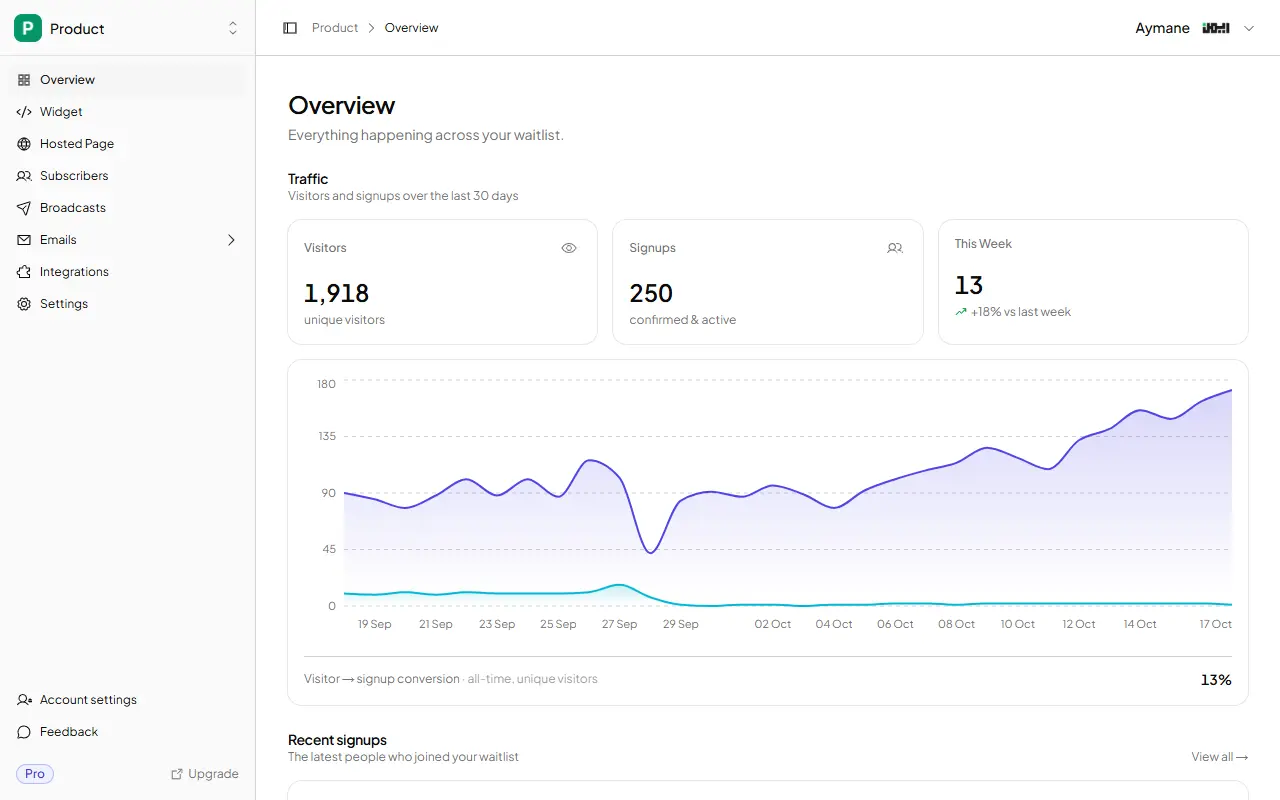
- Analytics: views, signups, conversion rate, 30-day trend
FAQ
Can I add a waitlist to Strikingly without coding?
Yes. You paste a snippet into a section you add from App Store & HTML — no programming. No backend code, no plugin, no CSS.
Why is my Strikingly embed blank?
In order of likelihood: you are looking at the editor, where custom code never renders; the <div> or the <script> was missed when copying; or the section has no height. Publish and view the live page first, then re-paste both lines.
What plan does Strikingly need for custom code?
Strikingly's help centre lists the HTML section as a Pro feature and header/footer custom code as Pro and VIP. If the option is missing entirely, that is the cause. The hosted-page link works on every plan, including free.
Is this free?
Adding a waitlist is free on GetWaitly's side — the widget, a hosted page, analytics, and up to 100 subscribers. Referrals and broadcasts start at $5/mo. Strikingly may still charge for the plan that unlocks its HTML section.
Related reading
- How to Add a Waitlist to Any Website
- Add a Waitlist to Your Website: Every Platform Guide
- How to Create a Waitlist Page (Free, No Code)
Add a real waitlist to your Strikingly site this afternoon — free, no code. Start your waitlist →

written by
Aymane E.
Founder of GetWaitly. I write about validating ideas, pre-launch, and growth from building a waitlist tool as a solo founder.
Follow on X