
article
How to Add a Waitlist to a Durable Site (2 Ways)
Add a waitlist to a Durable AI-built site with the Embed section or site-wide Custom Code — plus Force custom code render, and the no-code fallback.
Durable generates a website in seconds from a short description — no designer, no code. It is one of the fastest ways to get a page live. Adding a waitlist is almost as quick, whether or not your Durable plan allows custom code.
The short answer
Durable has both an Embed section for a form on one page and Custom Code under Settings for a script across the site. Use the Embed section, paste the two-line GetWaitly widget, and publish — the code renders on the live site, not in the editor. If you would rather not touch code, publish GetWaitly's hosted page and link to it. Either way, you get a Durable waitlist in minutes.
Option 1 — Embed the widget (custom code)
- Copy the snippet from GetWaitly under Settings → Widget:
<script src="https://getwaitly.com/widget.js" defer></script>
<div class="gw-widget" data-waitlist-id="YOUR_WAITLIST_ID"></div>
- Add an Embed section. In the Durable editor, hover between sections and click Add section, search Embed, and add it.
- Paste the code. Open the Embed section's three-dot menu → Edit section (newer editors label it Edit custom code), paste both lines into the code box, and click Done.
- Save and publish. Click Save in the top bar, then Publish.
The widget inherits your waitlist's accent color and font, so it fits the page without extra styling.
To load the script site-wide instead (for a popup trigger on every page), go to Website → Settings → Integrations → Custom Code → Add a custom script, name it, choose Body as the placement, and paste the script tag only. Then each Embed section needs just the container div.
Option 2 — Use the hosted page (no custom code)
If custom code is not available on your plan, publish GetWaitly's hosted page — a complete signup page served by GetWaitly, so Durable has nothing to block.
- Publish the hosted page at
getwaitly.com/w/your-id. - Link a Durable button to that URL, or embed it in an iframe:
<iframe
  src="https://getwaitly.com/w/YOUR_WAITLIST_ID"
  style="width:100%;height:640px;border:0"
  title="Join the waitlist"
></iframe>
The link option is usually cleaner on mobile.
Which should you use?
| Situation | Use |
|---|---|
| You want the form on a page of your site | The Embed section |
| You want a popup trigger site-wide | Custom Code → Body, plus a gw-trigger button |
| The page is still changing | The hosted page (nothing to break) |
| You do not want to touch code at all | The hosted page, linked from a button |
Durable-specific gotchas
- Custom code does not render in the editor. Durable's docs say so. Use Preview, or open the published page — an empty box in the editor is normal.
- "Force custom code render." If the embed stays blank on the live page, open the page's Page settings and toggle Force custom code render on. It makes Durable process late-loading scripts.
- Two places, two jobs. The Embed section is for one page. Settings → Integrations → Custom Code is for head/body code across every page. Pasting the script in both loads it twice.
- Save is not publish. Durable keeps edits until you click Publish.
What you get
- A styled signup form matching your accent color and font
- Optional name, phone, and custom questions
- Referral links and queue positions (Starter plan and above)
- Broadcast emails with open and click tracking (Starter and above)
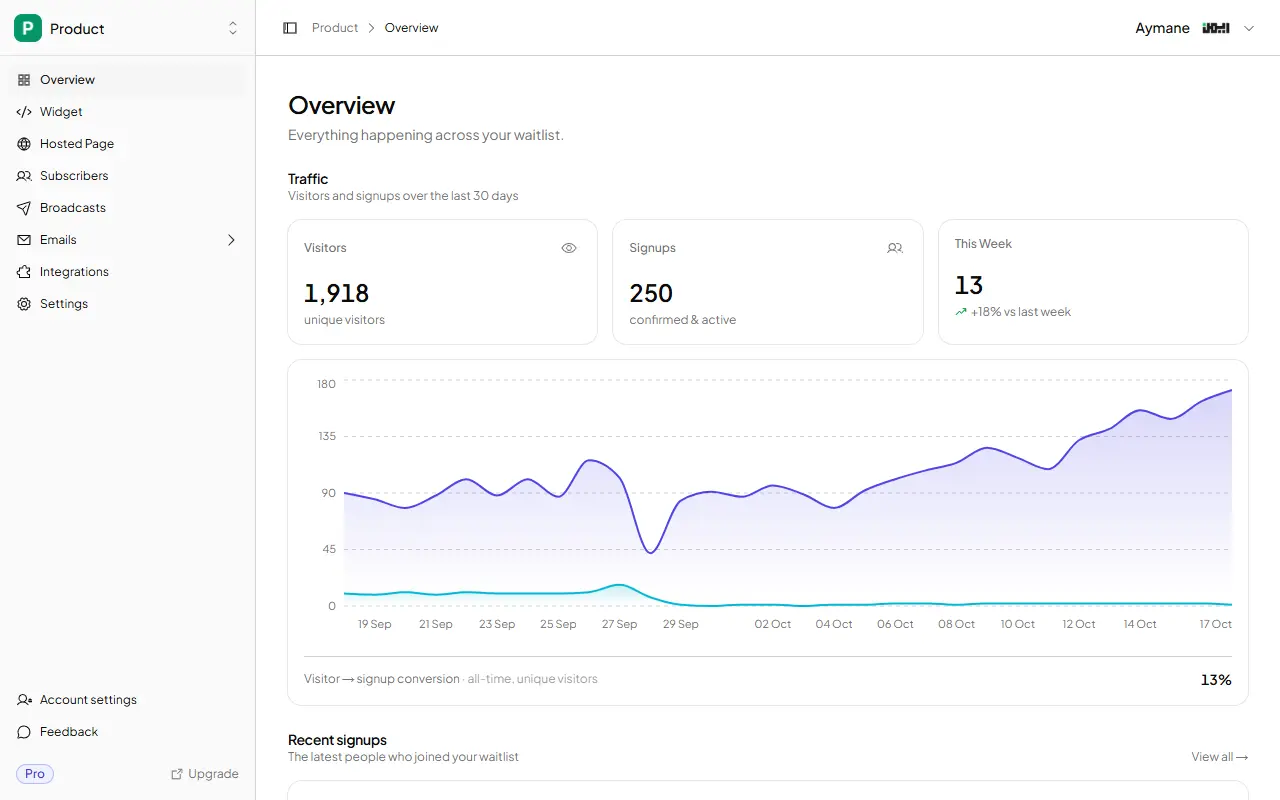
- Analytics: views, signups, conversion rate, 30-day trend
FAQ
Can I add a waitlist to a Durable site without coding?
Yes. Add an Embed section and paste one snippet — no programming. If you would rather avoid code entirely, link a Durable button to GetWaitly's hosted page.
Where do I paste custom code in Durable?
Two places. An Embed section (Add section → Embed) takes HTML for one page; Website → Settings → Integrations → Custom Code takes a script for every page. For an inline waitlist form, use the Embed section.
Why is my Durable embed blank?
Three usual causes, in order: you are looking at the editor, where Durable never renders custom code; Force custom code render is off in the page settings; or you saved but did not click Publish. Check those before changing the snippet.
Can I make the waitlist a popup in Durable?
Yes. Add the script under Settings → Integrations → Custom Code with the placement set to Body, then add an Embed section containing <button class="gw-trigger" data-waitlist-id="YOUR_WAITLIST_ID">Join waitlist</button>.
Is it free?
Yes. The free plan includes the widget, a hosted page, analytics, and up to 100 subscribers. Referrals and broadcasts start at $5/mo.
Related reading
- How to Add a Waitlist to Any Website
- Add a Waitlist to Your Website: Every Platform Guide
- How to Create a Waitlist Page (Free, No Code)
Launch the page, then launch the waitlist — free, no code. Start your waitlist →

written by
Aymane E.
Founder of GetWaitly. I write about validating ideas, pre-launch, and growth from building a waitlist tool as a solo founder.
Follow on X